
What is MacLauncher?
MacLauncher plays games on macOS. It has three parts: a native runtime system, a graphics and effects layer, and a set of tools for tinkering with your games. Each part can be used on its own or with the others.
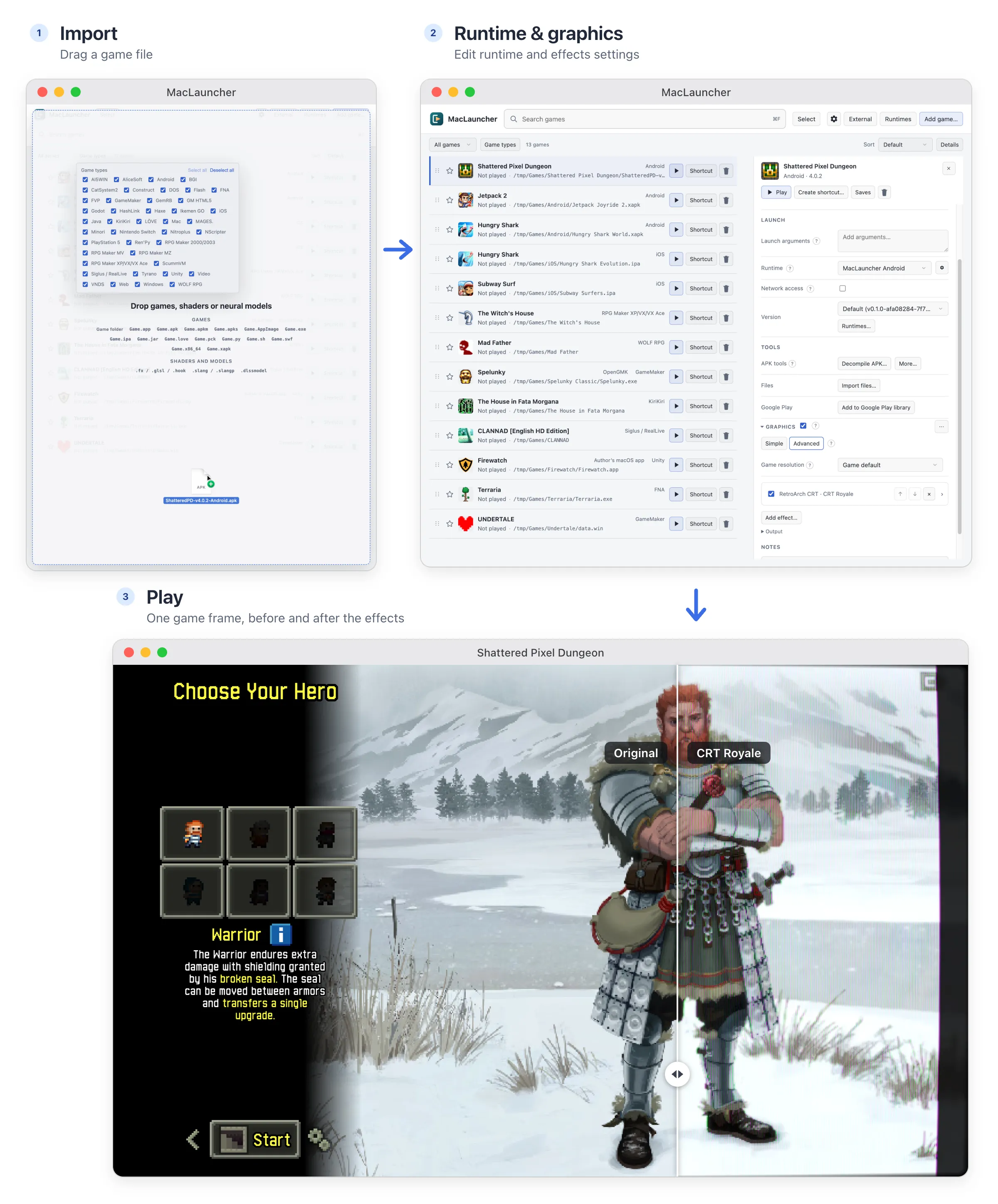
The Android version of Shattered Pixel Dungeon, running with CRT Royale shaders.
A native runtime system
Section titled “A native runtime system”Many games packaged for Windows don’t need Windows at all. They are built on engines such as Ren’Py, RPG Maker, Godot or GameMaker, and those engines, or faithful open-source reimplementations of them, run natively on macOS. The Mac version of the engine can read the game’s data directly, so the game runs without WINE and without emulation.
Doing that by hand means identifying the engine, finding a build of the exact version the game needs and configuring it. MacLauncher automates these steps. When you drag in a game folder or .exe, it detects the engine and its version, picks the runtime most likely to work, downloads it when you press Play, and launches the game. You can always choose a different runtime or version yourself.
Even if you have CrossOver, a native runtime is usually the better way to play. No translation layer sits between the game and your Mac, so it runs faster and uses less power. Windows, fullscreen, mouse input and audio behave the way macOS expects, without the occasional oddities of WINE. A game whose own Mac build fails to open because of signing or packaging problems can often still be played, because a working runtime reads the same game data.
Runtimes aren’t limited to Windows games. Android and iOS apps, PlayStation 5 and Nintendo Switch games, DOS games, 32-bit Mac apps, Flash, Java and dozens of visual-novel engines have them too. For Windows games with no native option, MacLauncher manages Sikarugir, a free distribution of WINE, and can also use your own copy of CrossOver. Ports of individual games from decompilation and recompilation projects, mostly older console games, are a different kind of project, and their macOS builds can be dragged in like any other Mac app.
How games run on a Mac explains the ideas behind these runtimes, and Games and runtimes shows what’s supported.
A graphics and effects layer
Section titled “A graphics and effects layer”MacLauncher has its own graphics pipeline, built natively on Metal, and it works with every runtime: native engines, WINE games, Android apps, consoles, videos and ordinary Mac apps. You can stack effects in any order and change them while the game runs. The effects include:
- spatial and temporal upscalers, from MetalFX and AMD FSR to neural upscalers such as Real-ESRGAN;
- frame generation, including a macOS port of Lossless Scaling’s, which uses your own copy of the app;
- neural reconstruction and restoration;
- any ReShade, RetroArch, mpv/libplacebo, Magpie or ISF shader you import, such as CRT effects, color grading, anti-aliasing and depth effects.
A single chain can render a game at 720p, pass it through a neural model, upscale it to 4K, add frame generation and finish with a CRT filter, and you can edit every step while you play.
Graphics and effects has examples of each kind of effect.
A tinker tool
Section titled “A tinker tool”MacLauncher also has tools for working with the games on your disk:
- Keep several versions of any runtime and choose one for each game.
- Download the games you own from Steam, Epic, GOG, itch.io and Google Play in the platform and version you choose, such as the Windows build of a Steam game or an older release.
- Use save snapshots and editors, cheats for RPG Maker and Ren’Py, and decompilers and extractors for most game types.
- Change any runtime option, add your own launch arguments, and turn network access on or off for each game.
MacLauncher doesn’t phone home or make requests in the background; every network request comes from something you did. The one exception is opt-in: turn on Check for updates at launch in Settings and it looks for a new version each time it starts. That setting is off by default.
Tinker tools describes all of these.
Open source
Section titled “Open source”MacLauncher is open source under the MIT license, and it builds on many other open-source projects, which are credited in the attributions. Runtime builds that need adapting for macOS live in the companion project MacLauncher Builds.
To install MacLauncher and play your first game, see Getting started.