
Frame generation
Frame generation makes motion look smoother in games that run at a low frame rate on your Mac. Some games are locked to 30 fps, and in others the game, or the effect chain on top of it, keeps the GPU busy. A frame generator compares two real frames, estimates how things moved between them, and draws one or more in-between images to show in the gaps.
In the example below, RIFE fills the gap in a quick camera move. The two real frames are cut from one screenshot of The Witcher 3: Wild Hunt, and RIFE drew the middle one.
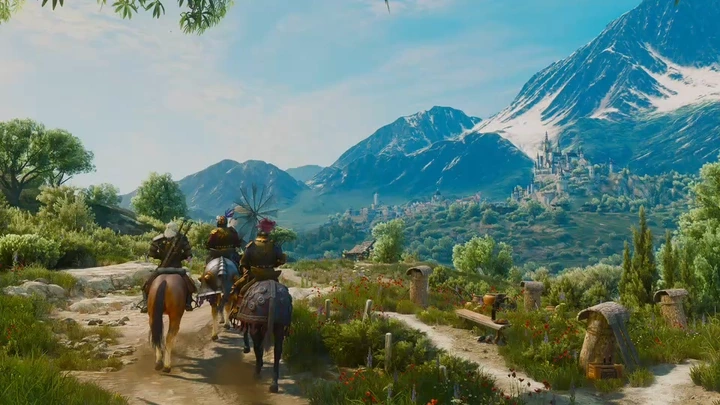
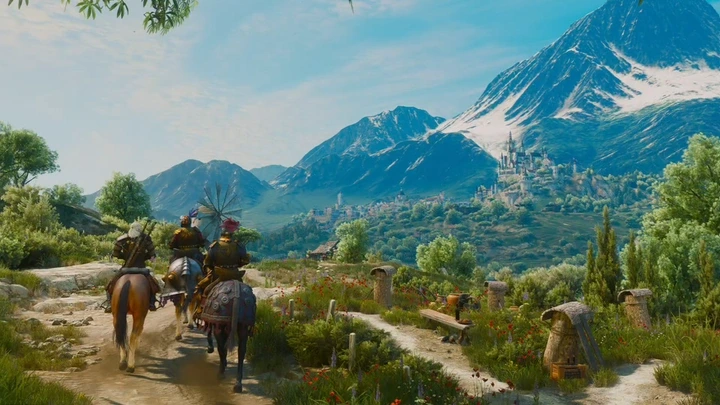
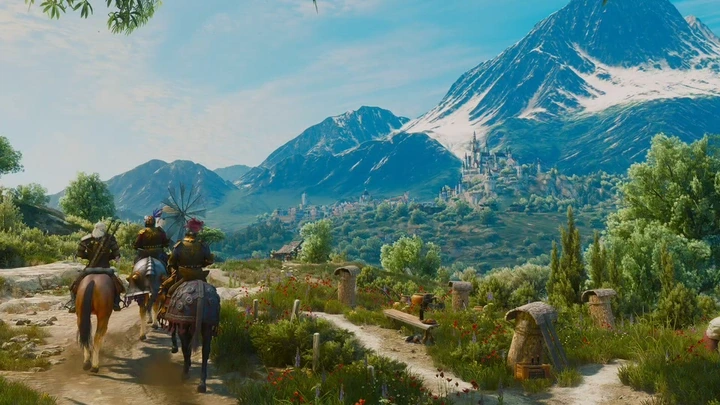
Frame generation changes only what the display shows: the game still runs at its own speed and handles input at its original rate. The generated frames do add a little latency, because the generator has to wait for the next real frame before it can draw the ones in between. That trade works well for exploration and story games, while competitive and rhythm games usually play better with frame generation off.
Two kinds of generators
Section titled “Two kinds of generators”Image-pair generators need only the finished images, so they work with every game:
- Lossless Scaling (LSFG) is the frame generator from Lossless Scaling, using the files from your own purchased copy. It has Quality and Performance modes, 16-bit or 32-bit precision and a motion-estimation scale, and it handles HDR images.
- RIFE 4.6 is an open neural interpolation model, running through MLX on the GPU.
- MLX interpolation is NVIDIA’s DLSS frame-generation model, running through MLX-DLSS.
- VideoToolbox interpolation is the low-latency frame interpolation in Apple’s VideoToolbox framework, and it runs on the Mac’s Neural Engine. It needs macOS 26 or later.
- MetalFX image interpolation feeds the MetalFX frame interpolator with motion that VideoToolbox estimates from the two images, so it needs nothing from the game’s renderer. It needs macOS 26 or later and a supported GPU.
- Vision optical flow is adapted from MetalDuck. Apple’s Vision framework measures how each part of the picture moved between the two frames, and the generator shifts both frames along that motion. Where the measurement can’t be trusted, it blends the two frames instead. It runs on every Mac that MacLauncher supports.
The last three use frameworks that come with macOS, so they need no downloads or model files.
The row’s Frame multiplier sets how many images a generator adds between a pair of real frames. At 3×, for example, it draws two images for every real frame, which takes a 30 fps game toward 90 fps. Most image-pair generators go up to 5×, or four images per pair, while VideoToolbox interpolation offers 2× and 4× and MetalFX image interpolation offers 2×. Image-pair generators also detect repeated frames and scene cuts and skip generation across them, which avoids smeared transitions.
Scene generators use the game’s depth, motion vectors and camera data, like the temporal upscalers. They draw one image in the middle of each interval between real frames, and they run in games whose runtime supplies that data:
- MetalFX frame interpolation needs macOS 26 or later and a supported GPU.
- FSR 3 frame interpolation is AMD’s optical-flow and interpolation passes, ported to Metal.
- Intel XeSS frame generation uses XeSS-FG components that you import separately, and runs through D3DMetal or KosmicKrisp on Apple Silicon.
Automatic
Section titled “Automatic”Automatic is a generator choice of its own. It runs VideoToolbox interpolation, MetalFX image interpolation or Vision optical flow, preferring them in that order, and measures how long each pair of frames takes. When the generator in use can’t keep up with the game’s frame rate, the row moves to the next one straight away. After ten seconds with time to spare, it returns to a preferred generator, but never within thirty seconds of leaving it, so the row doesn’t flip back and forth. Only the generators that offer the row’s multiplier take part: at 3×, that is Vision optical flow alone. A row set to one particular generator always keeps it.
Keep static content
Section titled “Keep static content”A generator estimates motion across the whole picture, so a menu, subtitle or health bar that stays still while the scene behind it moves can be dragged along with the scene and smeared in the generated images. Keep static content, an option of image-pair generator rows that is off by default for games and on by default for window graphics, repairs those areas after generation. It compares the two real frames around each pixel, and wherever they match, it returns the generated pixel to the real one, so interface elements and text stay sharp.
The comparison sees only the two real frames. A small object that moves quickly across a detailed area that otherwise stays the same can therefore go missing from the generated images, and turning the option off brings it back.
Pacing
Section titled “Pacing”Generated frames look smooth only when they are evenly timed, so the chain’s Output section has shared pacing settings. Frame pacing is either Fixed or Adaptive; Adaptive pacing varies generation, up to the row’s multiplier, to approach a Target frame rate between 30 and 240 fps, within the display’s actual refresh rate. Smooth cadence favors evenly spaced frames. These settings change only the images sent to the display, never the game’s simulation.
With window graphics, a generator draws only the images that the display can actually show, under Fixed and Adaptive pacing alike. For example, a window captured at 60 fps already fills a 60 Hz display, so a 2× row passes the real frames through and its Details give the reason. At 30 fps, the same display has room for one generated image between each pair of real frames. Each image is also timed to fall between two display refreshes, which keeps two images from landing on the same refresh and keeps small timing variations from moving an image to the wrong one.
A game whose frame rate swings up and down can be held at a steady rate with the Frame-rate cap in the same section, and the performance overlay shows the captured, displayed and generated frame rates during play.
For decoded video with content timestamps, generation fills the whole gap between two decoded frames, even at low frame rates or in slowed playback. Playback works one frame ahead so the in-between images can fill that gap, and file export uses the same timing and saves those images at their places in the video’s timeline.
A frame generation row can sit anywhere in the chain. Placed after an expensive neural model, for example, it lets the model run only on the real frames at the game’s own frame rate.
Getting Lossless Scaling files
Section titled “Getting Lossless Scaling files”LS1 and LSFG need model files from a copy of Lossless Scaling that you own. Runtimes → Graphics → Upscaling offers four ways to get them:
- Import Lossless Scaling DLL… reads the DLL from a local copy, including one installed through CrossOver.
- Find in Steam / CrossOver searches Steam libraries and standard CrossOver bottles on your Mac, without going online.
- Download from Steam… downloads the Windows version through the Mac Steam app, which must be signed in to an account that owns Lossless Scaling.
- Use SteamCMD… downloads it with Valve’s SteamCMD, signing in through Terminal, for Macs without the Steam app.
MacLauncher reads the DLL without running or changing it and never sees your Steam password or Steam Guard code. Imported models are shared by every game.
The graphics guide describes frame generation and Lossless Scaling setup in full, and the algorithm reference’s frame generation table lists every generator’s inputs and requirements. The same reference covers the generators that use macOS frameworks, Automatic and static content in detail, and the frame API reference describes display timing.
Further reading
Section titled “Further reading”- Motion interpolation on Wikipedia, the same idea as TV “smooth motion” modes.
- Optical flow on Wikipedia, the estimate of how each part of an image moves that Vision optical flow and most other generators start from.
- Why do some OLEDs have motion blur?, Blur Busters on sample-and-hold blur and why higher frame rates look sharper in motion.